Split Payment
Split Payment automatically divides every payment received by a sub account between that sub account and its parent account, without the payer ever seeing two charges.
For example, a hotel (sub account) keeps 85% of each booking, and the booking platform (parent account) that owns it receives 15%.
The parent account's cut can be worked out in three ways:
| Mode | The parent account receives | Example |
|---|---|---|
| Percent | A percentage of every payment | 15% of each payment |
| Fixed amount | The same amount from every payment | 10,000 LAK from each payment |
| Tiered | An amount that depends on the size of the payment | 5,000 LAK up to 100,000 LAK, 10% above that |
How it works
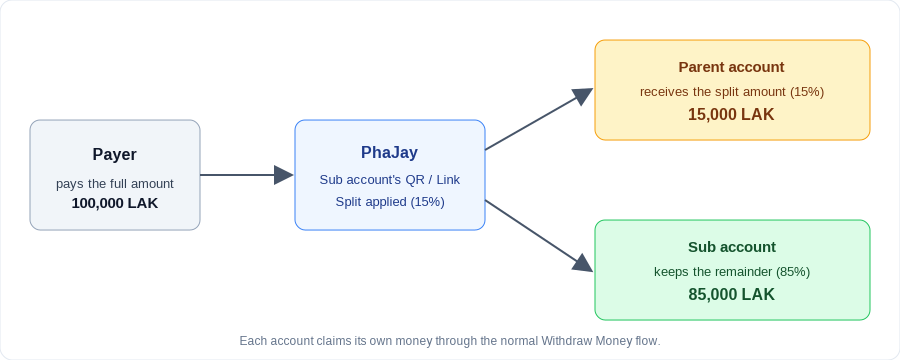
- The payer scans the QR (or opens the Payment Link) of the sub account and pays the full amount.
- When the payment is created, PhaJay divides it into two payments:
- Parent account receives the cut worked out by the configured mode.
- Sub account keeps the remainder.
- Both payments are completed together as soon as the bank confirms the payment.
- Each account sees its own payment in Payment History and claims its own money through the normal Withdraw Money process.
Example: with a split of 15%, a payment of 100,000 LAK gives 15,000 LAK to the parent account and 85,000 LAK to the sub account.
ℹ️ Note: The split amount is rounded and the sub account receives whatever remains, so the two amounts always add up exactly to the amount the payer paid.
Split modes
Percent
The parent account receives the percentage you set from every payment. The percent must be greater than 0 and up to 90%.
Fixed amount
The parent account receives the same amount from every payment, for example 10,000 LAK. A payment of 50,000 LAK and a payment of 500,000 LAK both give the parent account 10,000 LAK.
Tiered
The amount depends on the size of the payment. You create a list of tiers, and each tier says how much the parent account receives from payments up to its limit. The deduction of a tier can be either a fixed amount (LAK) or a percent (%).
| Tier | Payment amount | Parent account receives |
|---|---|---|
| 1 | up to 100,000 LAK | 5,000 LAK |
| 2 | 100,001 to 500,000 LAK | 8% |
| 3 | above 500,000 LAK | 30,000 LAK |
- A tier limit is inclusive: a payment of exactly 100,000 LAK falls in tier 1.
- Each limit must be greater than the limit of the tier before it.
- The last tier has no limit and automatically covers every higher amount, so every payment matches exactly one tier.
- There are always at least 2 tiers.
⚠️ Note: Fixed amounts and tier limits are written in LAK. Fixed and tiered splits are applied to LAK payments only. A payment in another currency (for example a USD credit card payment) is not split and the sub account keeps the whole amount. Percent splits apply to every currency.
ℹ️ Note: Whatever the mode, the parent account never receives more than 90% of a payment. If a fixed amount is larger than a small payment, the cut is capped at 90% so the sub account always keeps something.
Rules
| Rule | Details |
|---|---|
| Who can configure | Only the parent account that owns the sub account. A sub account can never change its own split. |
| Modes | Percent, Fixed amount or Tiered. Only one mode is active at a time. |
| Percent range | Greater than 0 and up to 90% (also for a tier set as a percent). |
| Enabling | The active mode must be fully set: a percent greater than 0, a fixed amount greater than 0, or a valid list of tiers. |
| Disabling | The saved settings of every mode are kept, so you can enable it again at any time. |
| Currency | Fixed and tiered splits apply to LAK payments only. |
| Who receives the split | The parent account that owns the sub account at the time the split is configured. |
| Existing payments | A change only affects payments created after the change. |
| Accounts set up before modes | Accounts that were set up earlier keep working as a Percent split. |
| Payer | Sees only one charge for the full amount. Nothing changes in the payment process. |
How to set up Split Payment
ℹ️ Note: The Sub Account menu is available to parent accounts whose sub account (agent) status is approved. Only the parent account can set up Split Payment.
Step 1: Open the Sub Account page
Log in to the PhaJay Portal (opens in a new tab) with the parent account and click Sub Account in the menu. The Split Payment column shows the current percent of each sub account.
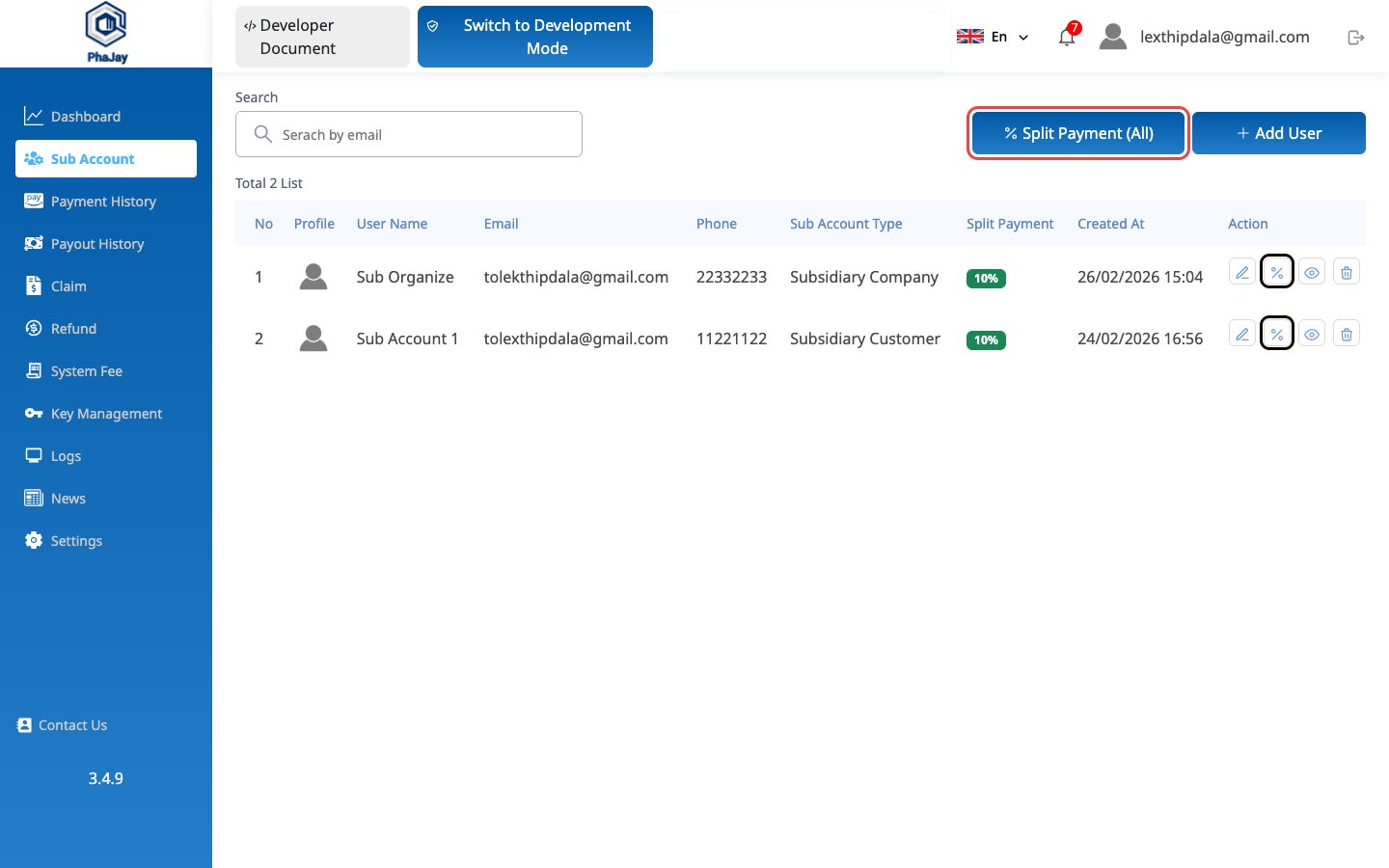
You can set up Split Payment in two ways:
- One sub account — click the % button in the Action column of that sub account.
- All sub accounts — click Split Payment (All) at the top of the list.
The Split Payment column shows the current setting of each sub account in a short form: 15% for a percent split, 10,000 LAK for a fixed amount, or Tiered (3) for a tiered split with 3 tiers.
Option 1: Set up for one sub account
Click the % button in the Action column of the sub account. In the Split Payment Settings window:
- Choose Enabled (or Disabled to turn it off).
- Choose the Deduction Mode: Percent, Fixed amount or Tiered.
- Fill in the setting of that mode (see below).
- Click Save.
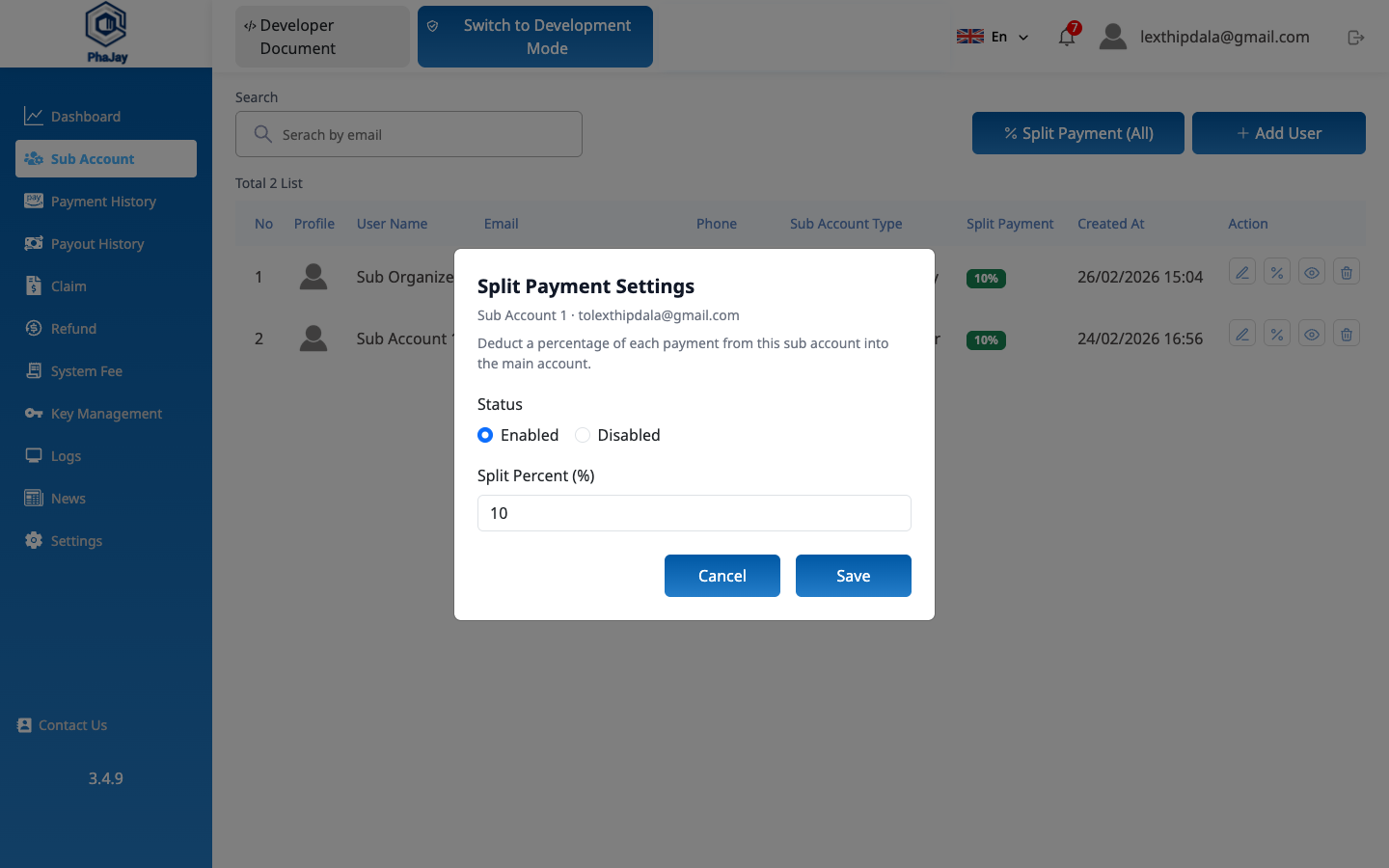
Percent — enter the Split Percent, for example 10.
Fixed amount — enter the Fixed Amount in LAK, for example 10,000.
Tiered — set each tier:
- The window starts with 2 tiers, and you cannot remove a tier below that.
- For every tier except the last, enter the upper limit in to (LAK). The header of each tier shows the range it covers, for example "Payments from 100,001 – 500,000 LAK".
- Under Deduct, use the switch to choose LAK (fixed amount) or % (percent), then enter the value.
- Click Add another tier to add more tiers. The last tier always shows "and above" and covers every higher amount.
ℹ️ Note: Amount fields use thousand separators automatically, so you can type
100000and it appears as100,000.
Option 2: Set up for all sub accounts at once
Click Split Payment (All). In the Split Payment Settings (All Sub Accounts) window:
- Choose the Status option. Click How it works if you want a short explanation of each option.
- Choose the Deduction Mode and fill in its setting (percent, fixed amount or tiers).
- Click Save.
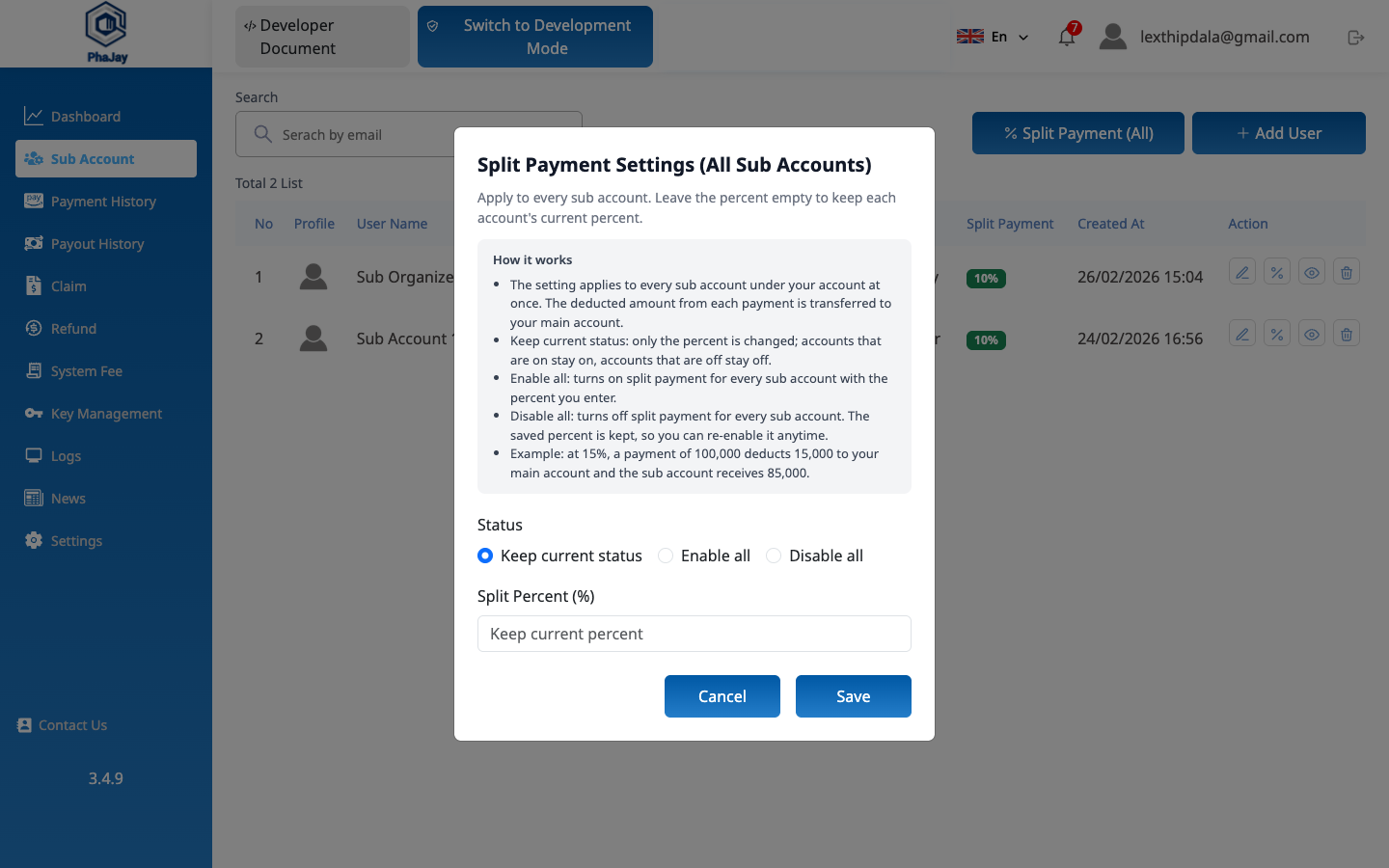
| Status option | Description |
|---|---|
| Keep current status | Only the deduction changes. Accounts that are on stay on, accounts that are off stay off. |
| Enable all | Turns on Split Payment for every sub account with the deduction you enter. |
| Disable all | Turns off Split Payment for every sub account. The saved settings are kept, so you can enable it again at any time. |
⚠️ Note: With Keep current status or Enable all, the setting of the chosen mode (percent, fixed amount or tiers) must always be entered, so that every sub account ends up with the same cut. It replaces each account's current deduction instead of falling back to it. Disable all needs no deduction.
After saving, the new setting appears in the Split Payment column.
After a payment is made
- The payer pays the full amount as usual — creating a Payment QR or Payment Link does not change.
- The sub account's payment shows the amount it keeps (the remainder), not the full amount the payer paid.
- The parent account receives its split amount as its own payment, visible in Payment History, and can claim it like any other payment.
- A parent account can also open a sub account in Staff Management and see that sub account's payment history there (view only: claiming and refunding stay with the account that owns the payment).
Refund of a split payment
A split payment can be refunded when the amount the payer originally paid (before the split) is 1,000 LAK or more — it does not matter how small each half is.
- The refund request is made from the sub account's payment. The parent account's cut is never refunded on its own.
- The payer is refunded the full original amount.
- The parent account's cut is put under the same refund and cannot be claimed while the refund is pending. It follows the outcome of the refund.
- Payments whose original amount is below 1,000 LAK cannot be refunded.
See Refund for the full refund process.
Updated just now