Auto Claim
Auto Claim creates your claim request automatically on a schedule you choose, so you no longer have to open Payment History and click Claim All yourself.
For example, set it to every Monday and a claim request for everything you can claim is created for you every Monday morning.
How it works
- You turn on Auto Claim and choose a schedule in the PhaJay Portal (opens in a new tab).
- Every day at 08:00 (Laos time) PhaJay checks which accounts are due.
- For each due account, PhaJay creates one claim request containing all claimable payments, exactly like Claim All in Withdraw Money.
- The claim request has the status Requesting. The admin reviews it and transfers the money to the bank account you used for KYC, as in the normal process. Auto Claim only creates the request — it never skips the review.
- The portal shows the result of the last run on the Auto Claim page.
Which payments are claimed
Auto Claim claims the same payments as Claim All with no filter:
- Payments that are completed.
- Payments of 1,000 LAK or more.
- Payments that are not already in a claim request (requesting, approved or finished).
- Payments that did not go directly into your bank account (merchant-ID payments).
ℹ️ Note: If you use Split Payment, Auto Claim claims the payments that belong to your own account — the share you keep, or the share a parent account receives.
Schedules
| Schedule | Runs | Example |
|---|---|---|
| Week, on selected days | On every selected day of the week. You can select several days. | Monday and Thursday |
| Month, on a set date | On the chosen day of the month, 1 to 31. | The 1st of every month |
| Every few days | Once every 1 to 60 days. | Once every 5 days |
- Short months: if you choose a day that a month does not have (for example the 31st in November), Auto Claim runs on the last day of that month.
- Every few days: the days are counted from your last Auto Claim run. Before the first run, they are counted from the day you saved the setting.
- First run: the first run is the next matching day after you save — never the same day. If you save on a Monday with "every Monday", the first run is the following Monday.
- Daily claims: to claim every day, choose "Every few days" and enter
1.
Rules
| Rule | Details |
|---|---|
| Who can use it | KYC-verified accounts (the main account and sub accounts). Before KYC is approved the menu shows a message and cannot be opened. |
| Time | Always 08:00 Laos time on the scheduled day. The time cannot be changed. |
| Nothing to claim | No claim request is created. The page shows "Nothing to claim" for that run. |
| If a run fails | Auto Claim tries again the next day, not at the next scheduled date. |
| Turning it off | The saved schedule is kept. When you turn it on again, the schedule starts counting from the day you save. |
| Changing the schedule | Takes effect when you save. The next run is calculated again from that day. |
| Banned or not verified accounts | Skipped until the account is KYC-verified again. |
| Manual claims | You can still claim manually at any time. Payments already in a claim request are never claimed twice. |
How to set up Auto Claim
Step 1: Open Auto Claim settings
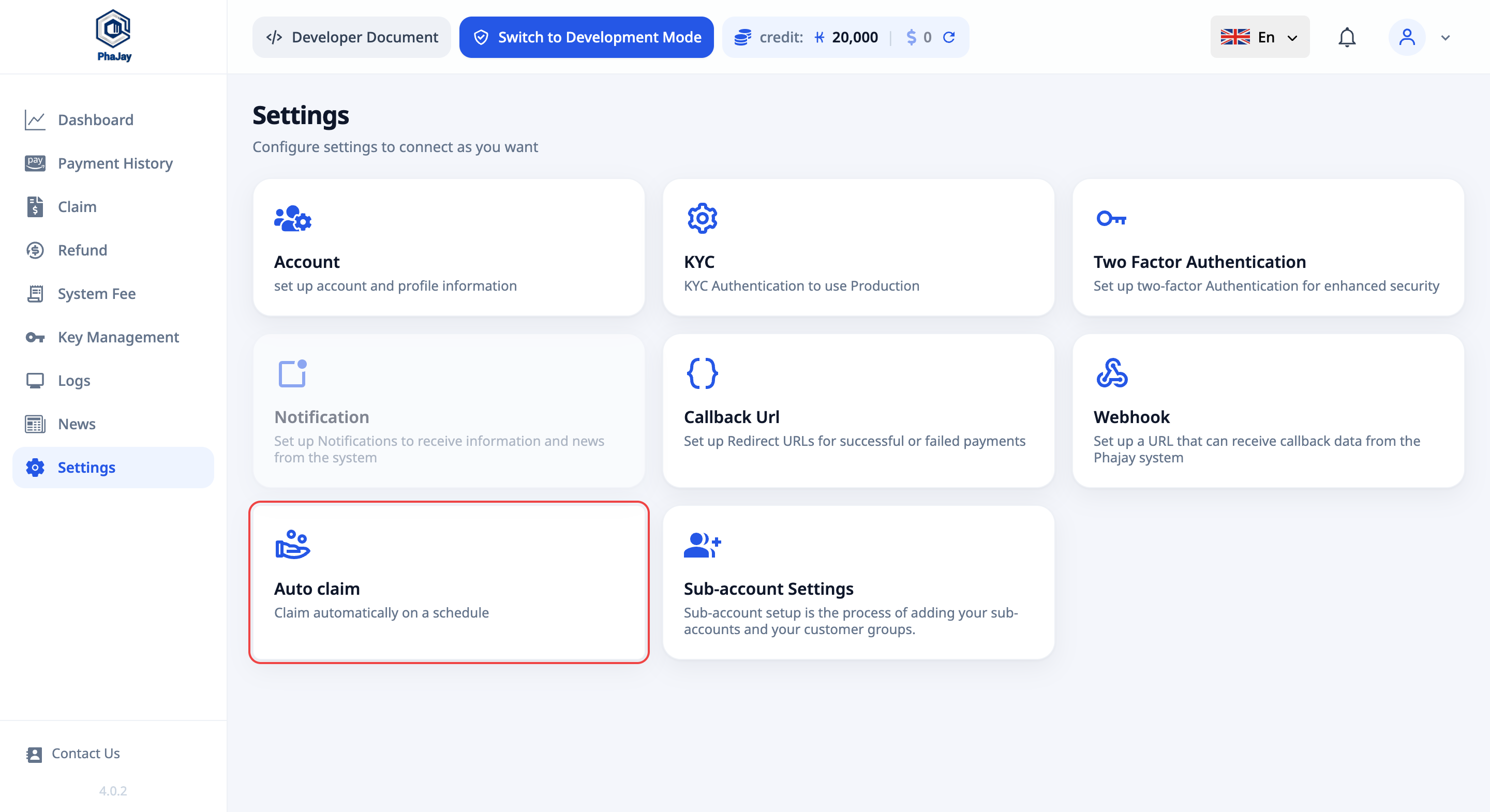
Log in to the PhaJay Portal (opens in a new tab), open Settings and click Auto claim.
Step 2: Turn it on and choose a schedule
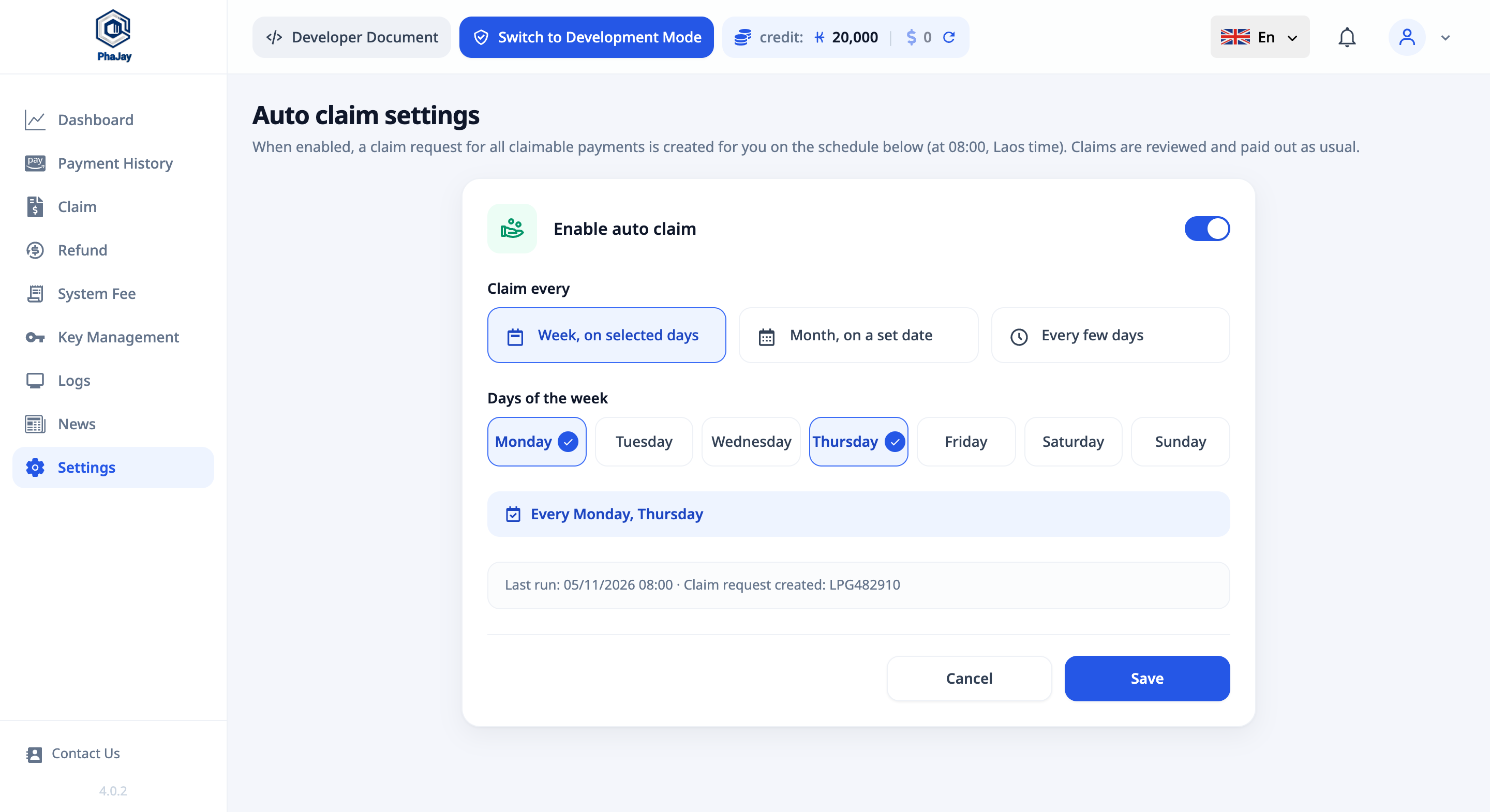
- Switch on Enable auto claim.
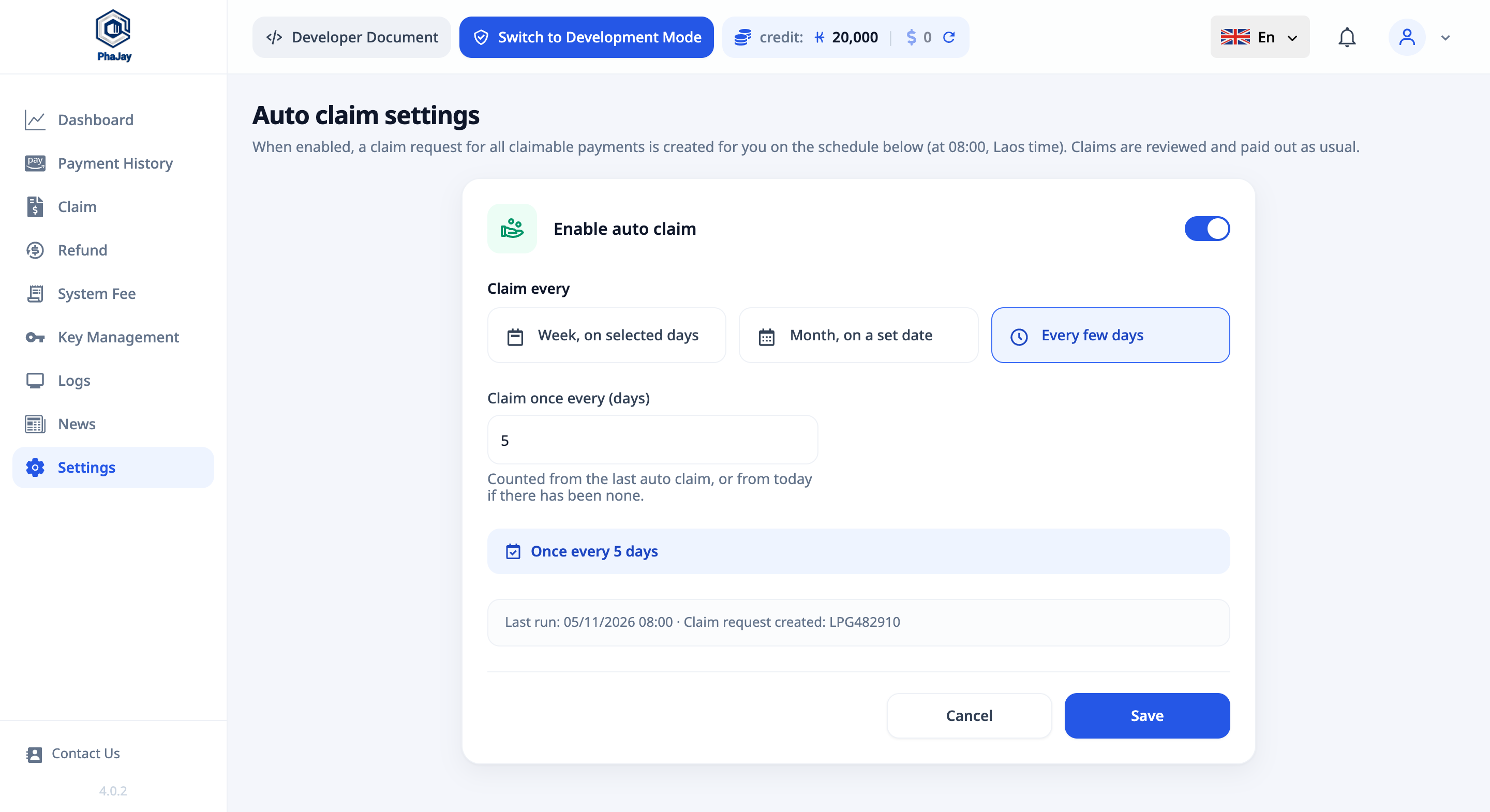
- Choose Claim every: Week, on selected days, Month, on a set date or Every few days.
- Fill in the schedule:
- Week — select the days of the week. At least one day is required.
- Month — enter the day of the month (1–31).
- Every few days — enter the number of days (1–60).
- Check the summary line under the form, for example "Every Monday, Thursday".
- Click Save.
Step 3: Check the result
After each run, Last run at the bottom of the page shows when it ran and the result:
| Result | Meaning |
|---|---|
Claim request created: LPGxxxxxx | A claim request was created. Find it in the Claim menu with the status Requesting. |
| Nothing to claim | There were no claimable payments, so nothing was created. |
| Failed, will retry tomorrow | The run failed. It is tried again the next day. |
Turn off Auto Claim
Open Settings → Auto claim, switch off Enable auto claim and click Save. Claim requests that were already created are not affected.
Updated just now